By Background Remover Video
An Unscreen Alternative for Reusable Transparent Video
Unscreen has closed. Follow a current replacement workflow, download a real transparent WebM sample, and check cost, clip limits and editor compatibility.
The original Unscreen service is no longer available. Its operator says it was sunset on December 1, 2025, and the old Unscreen address now leads to Canva's video background remover. If an older tutorial tells you to upload to Unscreen.com and follow its old download buttons, those steps no longer describe the service. See the operator's account notice.
BackgroundRemover.Video can give you a transparent WebM to place over a new background in another project. Your source must be shorter than 60 seconds, and the AI workflow requires sign-in and credits. If you already work in Canva, check whether your plan's editing tools cover the job before paying for another service.
We make BackgroundRemover.Video. This guide uses a fresh result from our production video settings and checks the downloaded file. It does not claim a quality win over the discontinued Unscreen tool. Product facts were checked on September 14, 2026.
Which replacement fits your next step?
| What you need | A practical starting point | Check before committing |
|---|---|---|
| A finished branded video with text and a new scene | Canva, especially if you already have a qualifying paid plan | Your plan's access and the final download settings |
| A short transparent clip to use in another project | BackgroundRemover.Video | The under-60-second input limit, credit balance and your editor's support for the output |
| Removal of a clearly separated green or other solid backdrop | A local chroma-key tool | Whether the key color also appears in the subject |
| Long footage or detailed frame-by-frame repair | Your video editor's masking or compositing tools | The time needed for edge cleanup and the format your project accepts |
Canva's current instructions cover video background removal on paid plans. They specify an original video length below ten minutes and explain that trimming inside Canva requires downloading and re-uploading the trimmed clip. That wider length allowance can matter more than a small difference in price.
For a clean solid backdrop, our local Green Screen Remover gives you a different route. Color keying depends on the colors in the footage; it does not identify a subject in an arbitrary room the way an AI removal model attempts to.
If an old alternatives list sends you to Runway, check our Runway background remover migration guide. It separates the retired standalone tool from current background editing and transparent-file workflows.
From an old Unscreen habit to a current workflow
1. Prepare the part you actually need
Choose the exact clip you plan to reuse, rather than uploading a whole recording. Our video workspace accepts MP4, MOV, WebM, M4V and GIF inputs. The source has to be strictly below 60 seconds; a file that is exactly one minute does not qualify.
Keep an original copy. Repeatedly compressing a clip before background removal can make fine edges harder to inspect.
2. Choose a transparent output deliberately
Open the video background remover, sign in and choose your file. After it is analyzed, review the duration and credit requirement. Select Transparent for the background and WebM VP9 for this walkthrough. Leave Auto Zoom off if you want to keep the original framing. If the source has sound you want to keep, enable Preserve Audio.
The workspace also offers transparent MOV ProRes and MKV VP9. Choose according to what your next application supports. For an ordinary MP4, select a solid background and treat the result as a finished opaque clip.
3. Download while the result is available
Run the task, inspect the preview and save the original result. Task uploads and results are private and remain available for seven days. Save the file into your own project storage rather than relying on the task link as a permanent asset URL.
4. Test it in the destination project
Import the result into the application where you plan to use it and put a colored layer underneath. Repeat with a clearly different color. Scrub the timeline, then play it continuously. Check thin edges and moments where the subject changes direction or shape.
If the preview is black, that alone does not establish whether the file is opaque. The player may be using black as its canvas. The transparent WebM troubleshooting guide walks through that distinction.
A real file to check before spending credits
The input for this example is a 2.5-second animated GIF of a rotating shoe, 324 × 576 pixels and 25 frames. GIF is one of the video workspace's accepted inputs. We ran it through the current production video model with a transparent background, WebM VP9 output, original framing and Preserve Audio enabled.
The unmodified result is 324 × 576, 2.5 seconds, 25 decoded frames, in a 333,120-byte WebM. We checked actual decoded transparency across the clip and playback in Chromium. The source is silent, so this example does not establish audio-preservation quality.
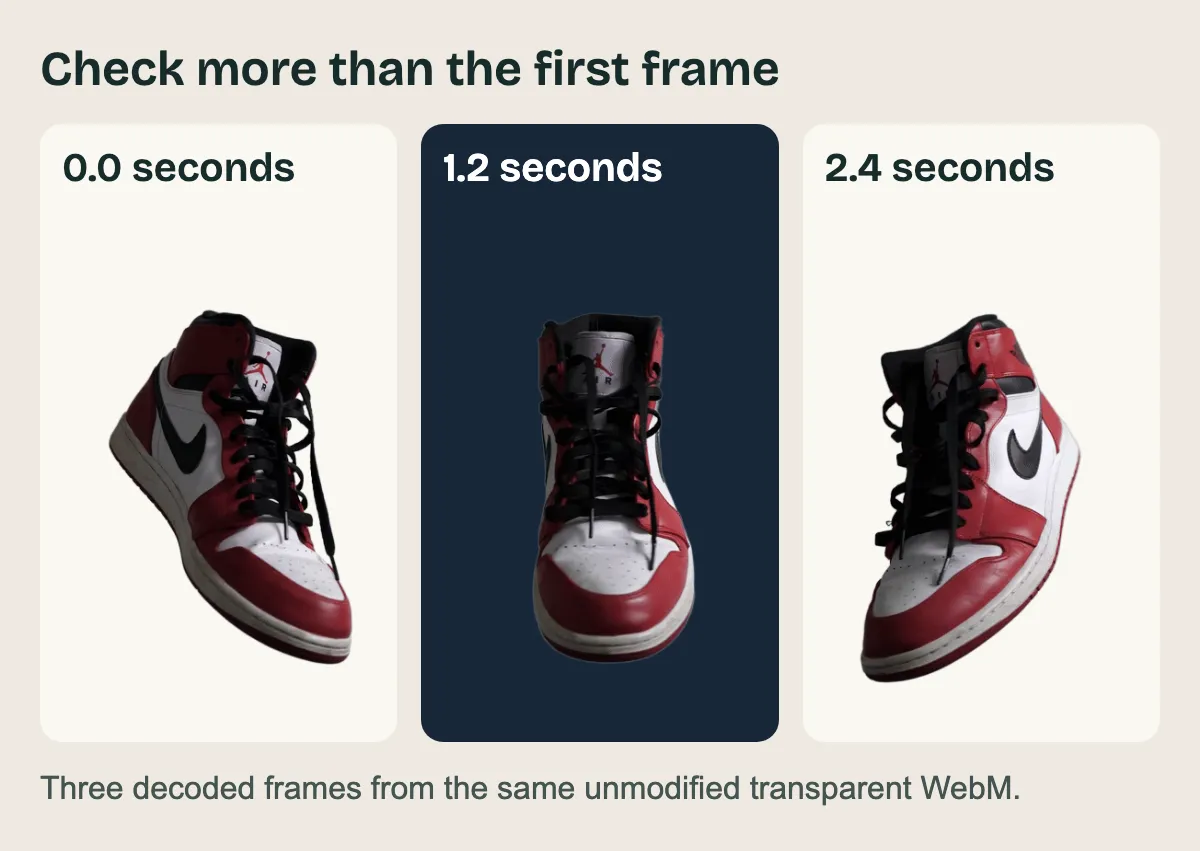
Decoded frames from one unmodified WebM. The backgrounds are added behind the video for inspection.
Download the source animation (GIF, 2.5 seconds)
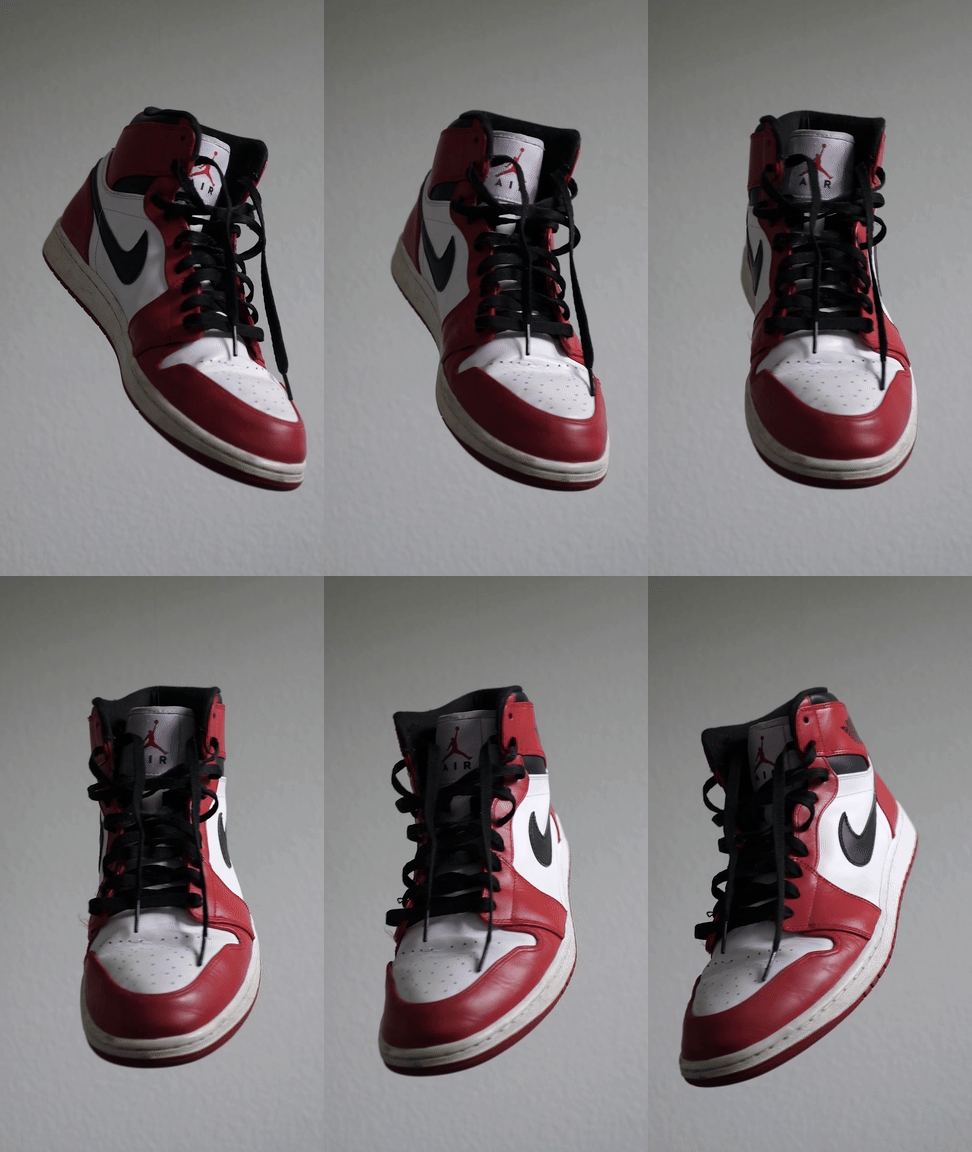
Download the actual transparent result (WebM, 2.5 seconds)
The source is a short excerpt of Danny Orloff's shoe animation on Pexels, used under the Pexels license. It is supplied here as a processing example; the creator and any depicted brand do not endorse this service. The sample does not grant a separate stock-media license.
The shoe is a small object sample, so use your own footage to judge hair, motion blur, low contrast or transparent materials. We generated this result with a script using the website's production model and settings. We did not time a signed-in website task or test checkout for this example.
How much would a replacement task cost?
The video workflow uses one credit per started second. That means:
| Source duration | Credits needed | Used portion of a $5.99 / 60-credit pack |
|---|---|---|
| 2.5 seconds, as in this sample | 3 | About $0.30 |
| 10.2 seconds | 11 | About $1.10 |
| 30 seconds | 30 | About $3.00 |
Those are allocations within the pack, not amounts you can pay for a single task. With no balance, allowance or discount, the smallest purchase is $5.99 for 60 credits. The 2.5-second task leaves 57 credits. Purchased credits do not expire; uploaded task files still have the separate seven-day retention period. See current credit packs.
A signup allowance may cover a small trial if one is available in your account. Check the balance before uploading: the AI workflow is not an unlimited free replacement. An existing design-tool subscription may already include background removal at no extra charge, subject to that plan's limits. You still pay for the subscription itself.
Questions from the old workflow
Is Unscreen.io the same service as the old Unscreen.com?
A similar domain name is not proof of continuity. The operator's notice concerns the original Unscreen service, and its old address currently points to Canva. Check the operator, terms and actual download choices of any other site you consider.
Can I turn a black-background MP4 into a transparent WebM by converting it?
Changing the container cannot recover a missing subject mask. If the background has been baked into the pixels, you need to remove it again or obtain the original transparent result. Our MP4 transparency guide explains the container and codec difference.
Should I choose Canva instead?
If you want to add text, use a brand template and export the final composition in the same project, it may be the shorter workflow. If your goal is a standalone transparent asset, test the actual downloaded file in your destination application first. The Canva video comparison works through those two delivery goals.