By Background Remover Video
Canva vs BackgroundRemover.Video for Video Background Removal
Choose between finishing a video in Canva and downloading a reusable cutout. Compare clip limits, real payments and a transparent WebM you can test.
Start with Canva if you already use its paid design tools and want to finish the whole video there. Background removal sits alongside the rest of that editing work. BackgroundRemover.Video fits a different next step: remove the background from a clip shorter than 60 seconds, download a supported transparent file, then use it in another project.
Decide what you need to deliver before comparing prices. Finishing a social video with text and a new backdrop is a different job from supplying a transparent cutout for someone else's timeline. This article compares video workflows; for still images, see our remove.bg comparison.
We make BackgroundRemover.Video. We checked Canva's current public instructions and attempted its upload flow, which required signing in. We did not complete a Canva paid-account export. Our downloadable sample uses our production processing settings and has been checked for actual transparency. Facts were checked on September 14, 2026.
Where each workflow helps
| Decision | Canva | BackgroundRemover.Video |
|---|---|---|
| Finish a designed video | Background removal is part of a broader editor with templates and other design tools | The workspace handles removal and output settings; complete the edit elsewhere |
| Work with a longer source | Official help specifies an original length below 10 minutes | Input must be strictly below 60 seconds |
| Obtain a reusable transparent video | Verify the actual export available in your plan and its behavior in the destination app | Transparent choices include WebM VP9, MOV ProRes and MKV VP9; test the chosen file in your app |
| Pay for occasional removal | Check a new plan or use an existing qualifying entitlement | Buy a credit pack; video uses one credit per started second |
| Keep detailed editing control | Consider the editor tools needed for your project | No full timeline editor or frame-by-frame brush cleanup in this workspace |
Canva's video feature page describes removing the background, editing the design and downloading a finished MP4. Its help page explains the paid-plan access and original-length rule. If you trim inside Canva, the help page says to download and re-upload the shortened clip before using removal. On mobile, it directs users to upload through the Uploads tab.
Those details make Canva a sensible starting point for an existing user making a branded final video. Leaving that project to remove one background can add steps without improving the deliverable.
A transparent design is only the first check
The subject can appear over different layers inside an editor while the final download is a complete, opaque composition. That can be exactly what you want for a social post. It does not establish that the file will carry a transparent area into another application.
For a reusable cutout, check the downloaded file, not just the editor preview:
- Export using the settings available in your actual account. Keep a note of the file type and any transparency option.
- Import that file into the application where the final work will happen.
- Put a bright layer behind it. Check whether the removed area reveals the new layer.
- Change that layer to a dark color and play through the clip. Inspect the edge while it moves.
Canva's documentation about transparent images is not evidence about a video export. Likewise, an MP4 label alone does not describe every possible codec or alpha workflow. We have not verified Canva's full range of current account-specific export options, so we cannot say that every Canva export is incapable of transparency.
Our video workspace offers WebM VP9, MOV ProRes and MKV VP9 when Transparent is selected. For an ordinary H.264 MP4, select a solid background. Renaming one of those files does not change its codec or create an alpha channel. The MP4 transparency guide explains why that matters.
Try an actual transparent file in your workflow
This sample comes from the same short clip used in our Unscreen alternative guide: a 2.5-second rotating-shoe GIF processed into a WebM with our current production settings. We kept the output unmodified.
| Sample property | Verified result |
|---|---|
| Dimensions | 324 × 576 pixels |
| Duration and decoded frames | 2.5 seconds, 25 frames |
| Container and codec | WebM, VP9 |
| File size | 333,120 bytes |
| Audio | None; the source is silent |
| Transparency check | Actual alpha decoded and composited over light and dark backgrounds; Chromium playback checked |
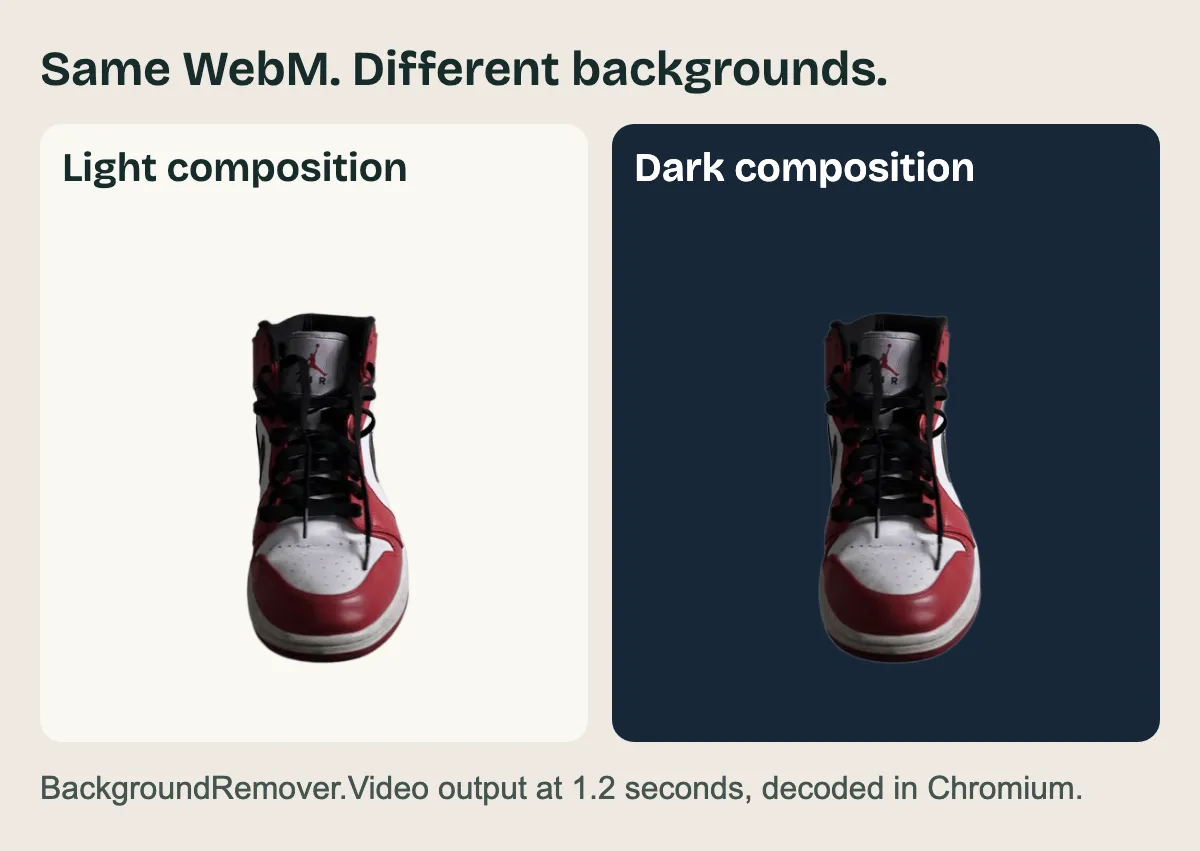
One BackgroundRemover.Video output frame at 1.2 seconds. Both panels use the same decoded pixels. This is not a Canva output comparison.
Download the original sample animation (GIF)
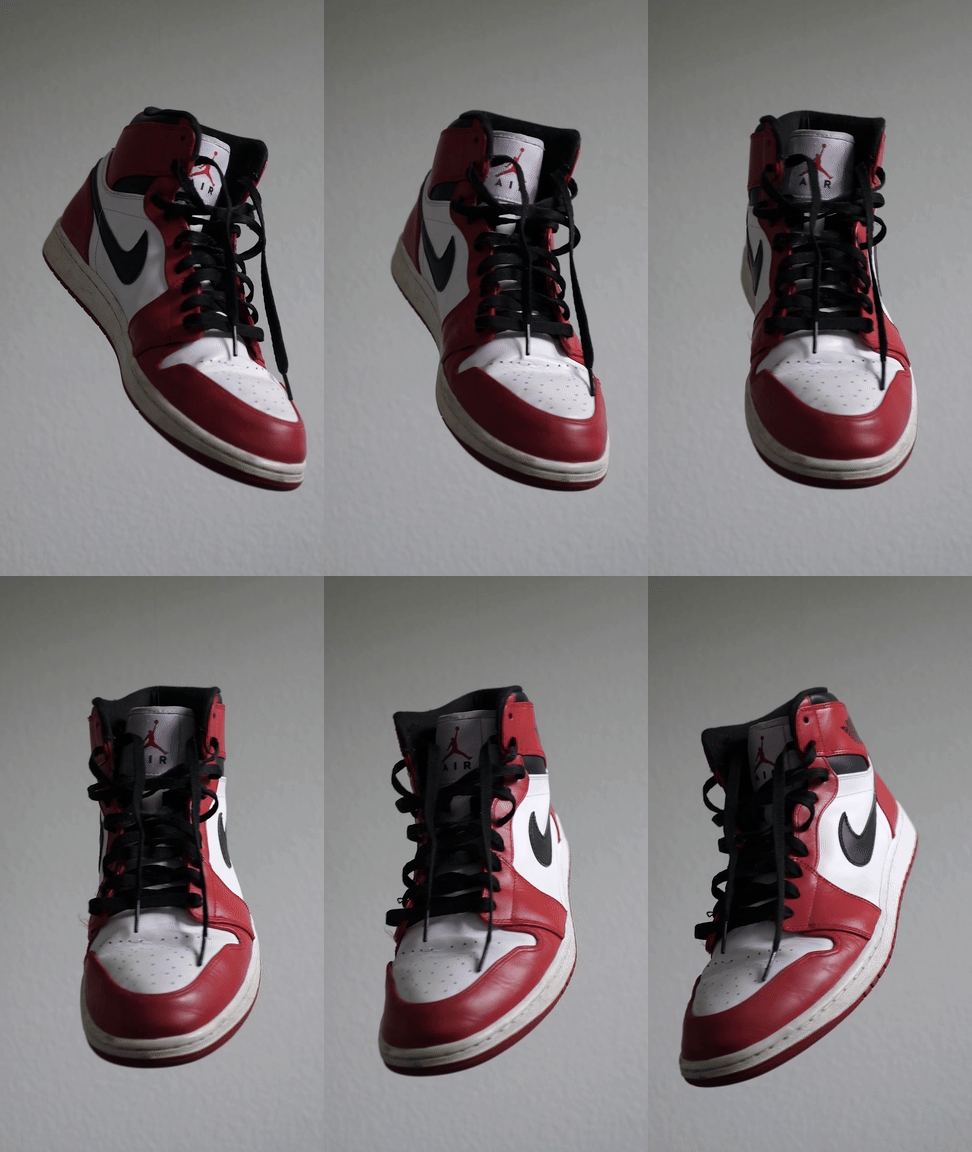
Download the verified transparent result (WebM)
The short source excerpt is from Danny Orloff on Pexels, used under the Pexels license. The creator and any depicted brand do not endorse this service. These are article verification files, not a separate stock-media license.
Try the file in the application you plan to use. A successful import confirms that this WebM works in that environment; it does not guarantee results for your own footage. For hair, motion blur or complex scenes, test a representative clip from your project.
We generated the file with a script using the website's production model and settings, and did not time a signed-in website session. The silent source cannot demonstrate audio preservation. The workspace has a Preserve Audio option for sources that do have sound.
The cost depends on what you already pay for
If your current Canva plan includes video background removal and you are within its usage limits, you do not need to buy a second subscription just to try that entitlement. Count the time and steps involved before adding another tool.
If you are new to Canva, check its current pricing for your account and region and any trial terms. We have not verified a single USD checkout quote that applies to every reader, so this comparison does not assign Canva an assumed universal monthly price.
BackgroundRemover.Video charges by the started second. Here is what two short tasks cost in USD:
| Situation | Credits used | Purchase with no balance or allowance | Balance after the task |
|---|---|---|---|
| This 2.5-second sample | 3 | $5.99 for 60 credits | 57 |
| A 10.2-second clip | 11 | $5.99 for 60 credits | 49 |
At that pack's rate, those tasks use about $0.30 and $1.10 of the balance. The amount paid is $5.99, not $0.30 or $1.10. These examples exclude tax, promotions and signup allowances. Check current packs and your available balance before paying.
Purchased credits do not expire, and images can use the same balance. Task files have a separate seven-day retention period, so download your results into your own project storage. Credits remaining in an account are not a backup of your videos.
Make the choice on one representative clip
For a final Canva design, try its included workflow first: select the uploaded video, apply BG Remover, add the elements the project needs, then inspect the final download. Keep an eye on the original-length requirement.
For a reusable short cutout, open the video background remover with a source shorter than 60 seconds. Review the estimated credits, select Transparent and the appropriate output, and download the result. Check the framing and audio settings against what you need in the next project.
Use a difficult moment from the real job for that trial: a moving hand, a turning subject or an edge close in color to its background. Then check the output where you intend to use it. If the task requires a long sequence, manual mask repair or complete editing in one place, our removal workspace alone will not finish the job.
Two common follow-up questions
Why does a transparent WebM look black in my player?
A player may display transparency against black, or its decoder may not expose alpha as expected. Check the file in a compositing environment with a different background before concluding that transparency was lost. Our WebM black-background guide provides the steps.
Is this also a comparison of Canva's image background remover?
No. Image export, photo editing and a single PNG have different limits and costs. This article is about video; use the image comparison linked above if your deliverable is a still cutout.