Keep the background simple
A plain wall or uncluttered scene helps separate a person, pet or object. Clothing close to the background color and strong reflections can make the boundary harder to identify.
Remove backgrounds from animated GIFs online. Isolate people, pets or objects and create transparent GIFs for stickers, product showcases and creative designs.
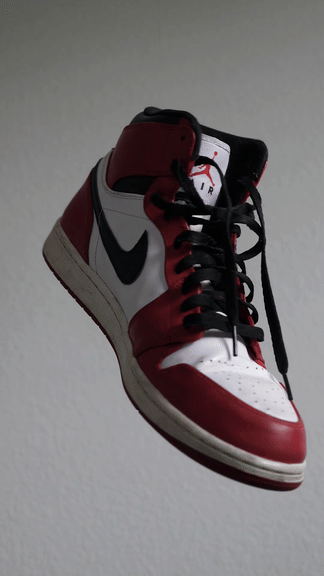
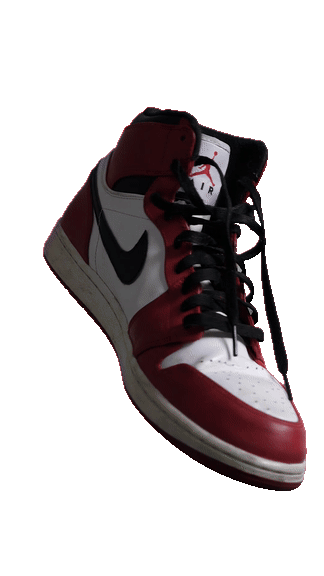
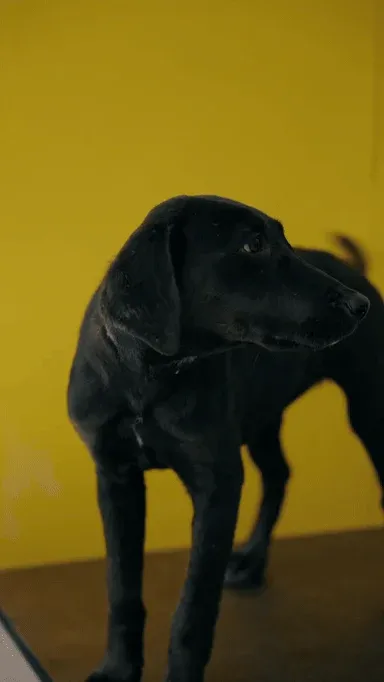
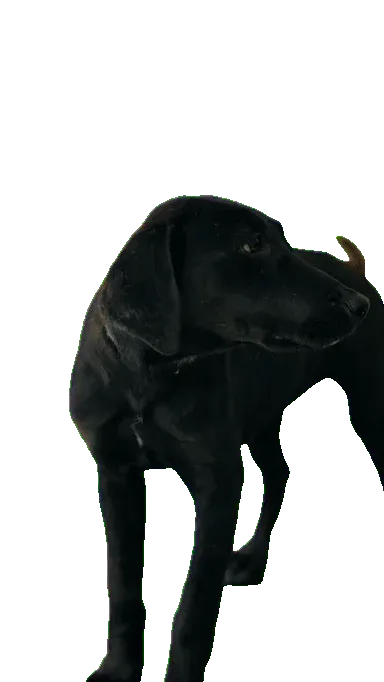
See a rotating sneaker and a dog before and after background removal. The checkerboard shows transparent areas. Each preview plays automatically as you scroll to it; the two files may play at different speeds.
A sneaker turning against a plain background
A dog against a yellow backdrop
Choose an animated GIF or drag it into the upload area.
Start processing and let AI separate the subject from the background.
Compare the before and after, then download the animation for your next design.
A small change to your source can make the cutout easier to use. Choose a short clip with one obvious subject and watch the whole animation, not just the first frame.
A plain wall or uncluttered scene helps separate a person, pet or object. Clothing close to the background color and strong reflections can make the boundary harder to identify.
Keep the subject inside the frame. A small head turn or a gently moving object is a useful starting point; fast movement, heavy blur and objects crossing in front can cause missing edges.
Fine hair, thin objects and translucent materials are harder to separate. Try a clearer source if important details disappear, and check the result on both light and dark backgrounds.
Use a person or pet as a moving reaction in an editor or messaging app that accepts transparent animated GIFs. Check the destination’s upload requirements first.
Place a small animated cutout beside a slide title or product explanation. Preview it in presentation mode to check whether your software keeps the animation and transparency.
Place the downloaded GIF over your page or design background in a compatible tool. Check its size, contrast and loop before publishing; avoid covering important text.
The transparent area lets the background of your page or design show through. A viewer may display it as white, black or a checkerboard. To check it, place the GIF over a different color in an editor that supports animated transparency.
GIF pixels are either fully visible or fully transparent, so fine hair and motion blur can look rough. GIF has no audio. A static PNG suits still images; the video tool is a separate workflow when you need video output.
Play the full result before using it: timing, frame count and looping can differ from the original.
File requirements, credits, transparency and tips for getting a result you can use.
The result is an animated GIF with a transparent background. Its timing, frame count and loop settings may differ from the original, so play the full file before using it.
Choose an animated GIF with at least 2 frames, up to 20 MiB and 1,800 frames, and a single playback cycle shorter than 60 seconds. A one-frame GIF belongs in the image tool.
Each started group of 30 input frames uses 1 credit. For example: 24 frames = 1 credit, 75 frames = 3 credits, 200 frames = 7 credits. Repeated playback does not multiply the price. Confirm the quote before processing.
Sign in to upload and process a GIF. Processing uses your account credits; you see the amount and confirm before it starts. Available credits can be used across supported tools. If you need more, buy a one-time credit pack without a subscription.
Yes. The tool separates the subject from its background rather than requiring a green screen. Clear contrast and an uncluttered background help. Similar colors, shadows or reflections can still leave rough edges or remove parts of the subject.
Many viewers show transparency against white, black or a checkerboard. Try placing the downloaded GIF over a colored background in a compatible editor. If the old background is still visible there, the removal was incomplete.
Hair, motion blur, thin details and overlapping objects can be difficult to separate consistently. GIF also lacks partial transparency, which limits soft edges. Try a simpler, sharper source and play the whole result against light and dark backgrounds.
In websites, presentations, stickers or creative layouts that support transparent animated GIFs. Some apps flatten transparency or show only a still frame, so test the downloaded file in the destination before sharing it.
Use this page for an animated GIF. Use Image Background Remover for a still image and transparent PNG output. Choose the video tool for video files, or the green screen tool for chroma key video work. Those tools have their own format requirements.
Inputs expire 7 days after upload; results expire 7 days after saving. Only your signed-in account can access them. A retry does not extend the original upload’s expiry.
Charged credits are returned when processing fails. While the original input is available, you can review a fresh quote and create a new retry task. The previous task remains in your history.
Choose your GIF and review the credits before you start.
Upload GIF