
Free Online Chroma Key Tool

Free Green Screen Remover

Remove Green Screen from Video Online

Use this free green screen remover to remove green screen from video with precise chroma key controls. Preview changes live and export transparent WebM or a PNG sequence locally in your browser.

  • No signup
  • Files stay on your device
  • Runs in your browser

Green Screen

Transparent Background

WebMPNG Sequence · ZIP
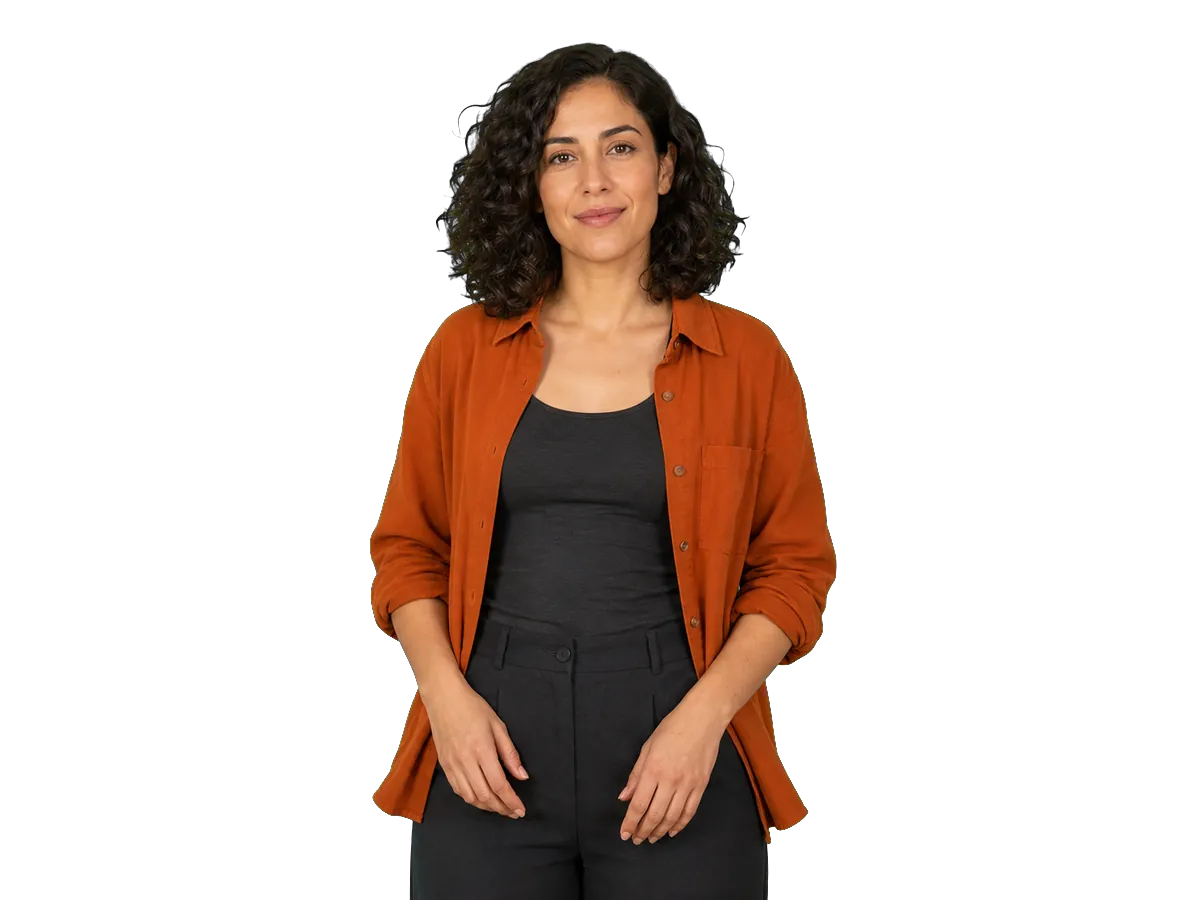
The same subject shown on a green screen and then isolated on a transparent background.
Local Chroma Key Workspace
Private by design · files never leave this browser

Drop a green screen video here

MP4, MOV, M4V, or WebM · one file at a time

Chroma Key Controls

#00FF00
40%
12%
50%

Output

Local processing · No uploads, login, or credits

No green screen?

Use AI Video Background Remover to isolate a subject from ordinary footage today.

Open AI Background Remover

Video Green Screen Remover Features

This video green screen remover gives you live feedback, focused chroma key controls, and transparent output without uploading the source video to a processing server.

  • Real-Time Chroma Key Preview

    See the chroma key result as you adjust settings. Each change updates in your browser without waiting for a server render.

  • Precise Chroma Key Controls

    Sample a background color directly from a frame, then tune similarity, edge softness, and spill suppression for a cleaner key.

  • Transparent Output Options

    Export transparent VP9 WebM with audio when supported, or a PNG Sequence ZIP with timing metadata and no audio.

  • Private Local Processing

    Your source footage is processed on this device and is not uploaded by this tool. No account or credits are required.

Three simple steps

How It Works

Import one green screen video, refine the key with live feedback, then export a transparent result your browser can create.

  1. 1

    Import Your Green Screen Video

    Choose one MP4, MOV, M4V, or WebM file. The tool checks the container, codec, and local browser capabilities before enabling output.

  2. 2

    Pick and Refine the Key

    Sample the screen color, adjust similarity, edge softness, and spill suppression, then compare Original, Result, and Alpha Matte.

  3. 3

    Export the Transparent Result

    Choose original size, fit within 1080p, or fit within 720p, then export transparent WebM or a PNG Sequence ZIP when supported.

What is Green Screen Video Removal?

Green screen removal, also called chroma keying, makes pixels close to a selected background color transparent. This lets you composite the subject over another video, image, color, or interface later.

Unlike AI background removal, chroma keying works best with footage recorded against an evenly lit green or other solid-color screen. It gives you direct control over the color range and edges, but it does not identify a subject in an ordinary complex scene.

Why Choose Our Video Green Screen Remover?

A focused local workflow for green screen footage that was recorded against a solid-color background.

  1. 1

    Predictable Color Control

    Manual key color and similarity settings make the result repeatable when the screen is reasonably even.

  2. 2

    No Account or Credits

    Import, preview, adjust, and export without signing in or creating a cloud processing task.

  3. 3

    Inspect the Alpha Matte

    Check Original, Result, and Alpha Matte views over checkerboard, black, or white before export.

  4. 4

    Capability-Aware Export

    The tool checks decoding, graphics, encoding, audio, and saving support and only enables output paths available in your browser.

Chroma Key Controls Explained

Give each control one job, then review still and moving frames in Result and Alpha Matte views before export.

01

Key Color

Sample a representative midtone from the screen in the current frame.

Watch for

Avoid a bright hotspot, deep shadow, or any part of the subject, and pick again if the screen color changes.

02

Similarity

Raise Similarity gradually to include a wider color range around the key.

Watch for

If Similarity is too high, clothing, reflections, or subject detail near that color can become transparent.

03

Edge Softness

Feather the alpha matte transition to reduce a hard cutout edge.

Watch for

Too much Edge Softness can create a halo or wash away hair and motion detail.

04

Spill Suppression

Increase Spill Suppression gradually to reduce green contamination near partly transparent hair, skin, or clothing edges.

Watch for

Too much can shift edge color, and it cannot restore detail missing from the source.

Common Green Screen Problems and Fixes

Start with small changes and inspect the full clip. Some source problems need better lighting, different wardrobe or props, or a new recording.

  1. 1

    Green patches remain

    Try this

    Sample a representative screen color again, then raise Similarity a little at a time while checking the whole frame.

    Source limitation

    Strong shadows, wrinkles, or hotspots may require more even screen lighting or a new recording.

  2. 2

    Parts of the subject disappear

    Try this

    Lower Similarity and sample the screen again. Check clothing, props, and reflections near the key color.

    Source limitation

    A true color conflict may require different materials or another recording.

  3. 3

    Edges look hard or noisy

    Try this

    Add a small amount of Edge Softness and inspect hair, fingers, and motion blur in Result and Alpha Matte views.

    Source limitation

    Heavy compression, sharpening, or severe motion blur can limit recoverable edge detail.

  4. 4

    Green spill remains on edges

    Try this

    Increase Spill Suppression gradually and compare the result over checkerboard, black, and white.

    Source limitation

    Strong green bounce may require more distance between subject and screen or different lighting.

Choose the Right Transparent Export

Choose the transparent format that matches your next workflow and the capabilities available in this browser.

Transparent WebM

  • Alpha: Continuous VP9 video with transparency when VP9 Alpha encoding is available.
  • Audio: Source audio can be included only when the browser can encode Opus.
  • Workflow: Useful for web playback and tools that accept WebM Alpha; editor support varies by platform and version.

PNG Sequence ZIP

  • Alpha: A ZIP of transparent PNG frames plus sequence.json timing metadata.
  • Audio: Not included.
  • Workflow: Use an image-sequence workflow in a compatible editor or compositing tool, especially when transparent WebM encoding is unavailable.

Green Screen Video Use Cases

Export one transparent source, then finish the project in the editor, presentation, or web composition that adds the background and other layers.

  • 1

    Creator and Talking-Head Videos

    Place a keyed presenter over a branded scene in a compatible editor, presentation, or web composition.

  • 2

    Product Demos

    Combine a transparent presenter with product footage, screen recordings, or interface visuals in your downstream workflow.

  • 3

    Education and Training

    Reuse instructor footage in lesson videos, presentations, and training layouts after export.

  • 4

    Campaign Variants

    Use the same transparent source to create different backgrounds, sizes, or language versions in your downstream editor.

Frequently Asked Questions

Ready to remove your green screen?

Choose a green screen video and refine the result locally. Your source footage is not uploaded by this tool.

Choose a Video