Can MP4 Have a Transparent Background?
Most MP4 files do not preserve transparency, but alpha-capable MP4 exists. Learn how codecs, alpha channels, WebM, MOV, and playback support differ.

Short answer: Most MP4 files cannot be used as transparent video. In the workflow people usually mean by “MP4”—an H.264 encode made for broad playback—there is no usable alpha channel, so transparent pixels are flattened or discarded. But “MP4 never supports transparency” is too absolute. MP4 is a container, and Apple’s HEVC Video with Alpha profile explicitly allows alpha-encoded video tracks in MPEG-4 files. A transparent MP4 therefore needs both an alpha-capable encode and a decoder that understands that profile.
That distinction resolves three questions that are often treated as one:
- Can an ordinary
.mp4be used as the source for background removal? Yes. New alpha data can be estimated from its visible frames. - Will a conventional H.264 MP4 preserve that new alpha data? Usually not in common export and playback workflows.
- Can an MPEG-4 file contain an alpha-capable video track? Yes, under a specialized profile such as Apple’s HEVC Video with Alpha—but compatibility must be verified end to end.
Which format should you choose?
For a browser overlay, start with an alpha-enabled WebM and test it in the browsers your audience uses. For editing, choose an alpha-capable MOV codec such as ProRes 4444, or a PNG sequence if your editor supports it. If the destination needs an ordinary H.264 MP4, place the subject over its final background before exporting: that delivery copy will be opaque.
Need something concrete to test? The downloadable source, transparent WebM, and black-background MP4 below use the same animation. They let you compare a file that retains alpha with one whose background is already part of the picture.
What “transparent video” actually means
A transparent video needs more than a subject filmed against a blank wall. Every pixel needs color information plus an opacity value called alpha. A simple compositing equation is:
displayed pixel = foreground × alpha + background × (1 − alpha)
An alpha value of 0 makes a pixel fully transparent; the maximum value makes it fully opaque. Intermediate values preserve soft details such as hair, motion blur, smoke, and antialiased edges. Viewed as an image, those opacity values form a grayscale alpha matte: black is transparent, white is opaque, and gray is partially transparent. Adobe’s guide to alpha channels, masks, and mattes explains the same relationship in a compositing workflow.
A checkerboard is only a user-interface convention for showing empty pixels. If the checkerboard itself was rendered into every frame, it is ordinary opaque picture content—not transparency.
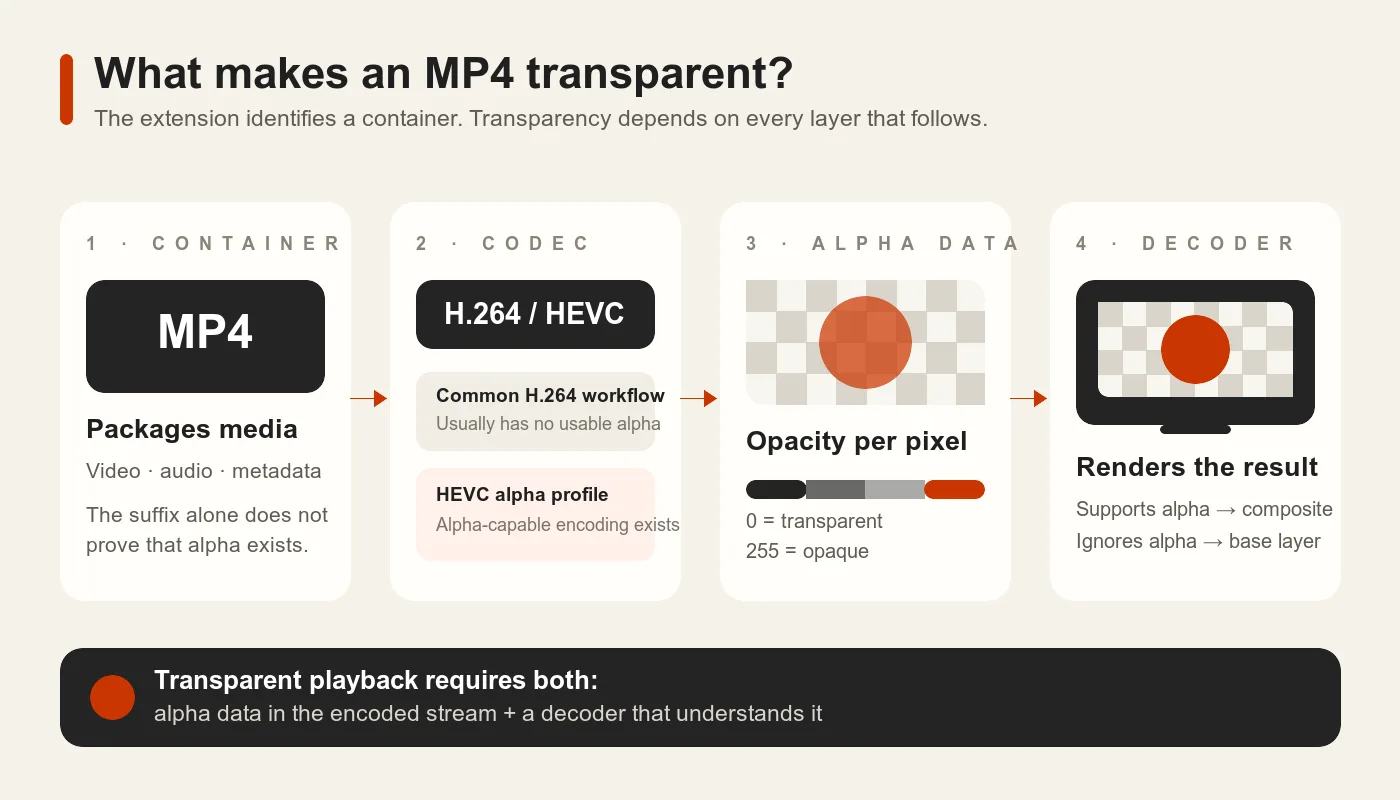
Figure 1. An .mp4 suffix identifies the container; transparent playback still depends on the encoded alpha data and a decoder that can use it.
The four layers in Figure 1 have different jobs:
- Container: MP4 packages one or more media tracks and related metadata. The ISO/IEC 14496-14 overview describes the MP4 file format as derived from the ISO Base Media File Format.
- Codec and profile: The encoded video track determines how picture data—and, in an alpha-capable design, opacity data—is represented.
- Alpha data: Transparency has to exist in the encoded stream. A filename cannot create it.
- Decoder and compositor: The receiving app must decode the relevant alpha representation and combine the foreground with whatever sits behind it.
If any link in that chain omits or ignores alpha, the result is opaque even though an earlier stage contained transparency.
How an MP4 can contain transparency
MP4 does not define one mandatory video codec. It is a container that can package different kinds of media tracks, which is why a universal statement such as “the MP4 file structure discards transparency” is inaccurate.
Apple’s HEVC Video with Alpha Interoperability Profile is the clearest primary-source counterexample. The profile specifies an HEVC representation with base-image and alpha information and says that video tracks encoded in this manner may be stored in both QuickTime Movie and MPEG-4 files.

Figure 2. Apple explicitly permits video tracks encoded under its HEVC-with-alpha profile to be stored in MPEG-4 files. Source: Apple HEVC Video with Alpha Interoperability Profile, page 3.
This proves that transparent MP4 is technically possible. It does not prove that every HEVC encoder can create it or that every HEVC decoder can display it. Ordinary HEVC support and support for this alpha profile are separate capabilities. An unsupported player may display an opaque base image, show an unexpected background, or reject the file, depending on its implementation.
Compatibility can also be lost after successful export. A messaging service, content-management system, video host, or generic converter may transcode the upload to a conventional delivery stream and discard its alpha information. Transparent MP4 is therefore most dependable in a controlled pipeline where the encoder, transfer path, decoder, and compositor are all known.
Why most MP4 files are not transparent
Most MP4 files encountered on the web, in cameras, and in export menus are conventional delivery files, commonly using H.264. Those workflows prioritize compact size and broad playback, and they normally do not expose a usable alpha plane. If a transparent composition is sent through such a preset, the exporter typically flattens it against a background or omits its alpha channel.
Adobe’s own export documentation makes the important boundary explicit: choosing RGB+Alpha creates a movie with alpha, but not every codec supports alpha channels.

Figure 3. Alpha is an output and codec capability, not a promise made by the container extension. Source: Adobe After Effects rendering and export basics.
Two common explanations are worth correcting:
- “MP4 is designed for playback, so its file structure deletes transparency.” The container itself is not the deciding layer; the encoded track and the software handling it are.
- “H.264 and H.265 only store RGB.” That is not a useful description of delivery video, which commonly represents color as luma and chroma components. More importantly, grouping all HEVC/H.265 workflows together hides the specialized HEVC-with-alpha profile documented by Apple.
The reliable shorthand is narrower: a normal H.264 MP4 should be treated as opaque unless you have specific evidence to the contrary.
MP4 vs WebM vs MOV for transparent video
There is no universally best transparent-video format. Choose according to the software that must decode the final file, whether the asset is for editing or delivery, and how much file size matters.
| Format and codec | Alpha support | Best fit | Main limitation |
|---|---|---|---|
| MP4 + HEVC with Alpha | Yes, under a specialized HEVC alpha profile | Controlled Apple-oriented or application-specific delivery where the complete pipeline is known | HEVC support alone does not guarantee alpha-profile support; intermediaries may strip alpha |
| WebM + VP8/VP9 alpha | Yes; the WebM alpha-channel design and Chrome’s WebM transparency guidance document web-oriented alpha workflows | Browser overlays, product UI, and web animation after testing the target browsers | Browser behavior differs; MDN currently notes that Safari does not support alpha transparency in VP9 |
| MOV + Apple ProRes 4444/4444 XQ | Yes; Apple documents an optional alpha channel up to 16 bits with mathematically lossless alpha encoding | Editing, motion graphics, VFX interchange, and high-quality masters | Much larger than delivery-oriented files; the receiving editor still needs the codec |
| PNG image sequence | Yes, when each frame is exported with alpha | Frame-accurate VFX interchange and workflows that value recoverability over convenience | Produces many files, requires substantial storage and I/O, and does not carry synchronized audio as one video file |
For WebM, check the exact browser rather than relying on a generic “VP9 supported” label. MDN’s current VP9 compatibility note distinguishes decoding VP9 from displaying its alpha transparency.
For MOV, the codec matters just as much as the extension. Apple’s ProRes white paper documents optional alpha support in ProRes 4444 and ProRes 4444 XQ, including up to 16-bit alpha and mathematically lossless alpha encoding. A MOV containing another codec may be completely opaque.
Can MKV be transparent, and what happens when MOV becomes MP4?
MKV is another container, so a .mkv suffix cannot tell you whether the video inside has alpha. Check the actual codec, whether alpha was encoded, and whether your receiving app can decode that representation. The same checks apply to MOV; the source MOV in the samples below stores PNG-encoded frames, not ProRes.
When a transparent MOV or MKV is converted to ordinary H.264 MP4, the delivery encode cannot carry the original usable alpha. The converter may composite it over a selected color or discard the alpha information. Keep the transparent source if you will need another background later. Renaming the file or remuxing its existing stream cannot create missing transparency.
Choose the output by its destination
Start with the final playback or editing environment, then work backward:
- Browser or web UI: WebM with alpha can be efficient when the supported-browser list is known. Test every required browser and provide an opaque fallback when transparency is not supported.
- Editing, compositing, or VFX: MOV with ProRes 4444 is a common high-quality intermediate. A PNG sequence is useful when individual-frame access and recovery matter more than storage or convenience.
- A controlled Apple or app pipeline: HEVC with Alpha in MOV or MP4 can be appropriate when the designated encoder and decoder are both documented to support the profile.
- Unknown players, social platforms, or broad file sharing: Do not assume alpha will survive. If the destination cannot be tested, compositing over the intended background before delivery is safer than depending on transparent playback.
“Supports MP4,” “supports HEVC,” or “supports VP9” is not enough information. The practical compatibility question is: Will this exact destination decode and composite this exact file’s alpha representation?
How an ordinary MP4 gains a transparent background
An opaque source MP4 does not contain hidden transparency waiting to be restored. A background-removal or video-matting system creates new data by estimating which pixels belong to the foreground and how opaque each one should be.
The workflow has four stages:
- Decode each source frame into visible picture data.
- Estimate a temporally consistent alpha matte, including partial opacity around fine or moving edges.
- Use that matte to separate the foreground from the original background.
- Encode the foreground and alpha into a format and profile that the destination can decode.
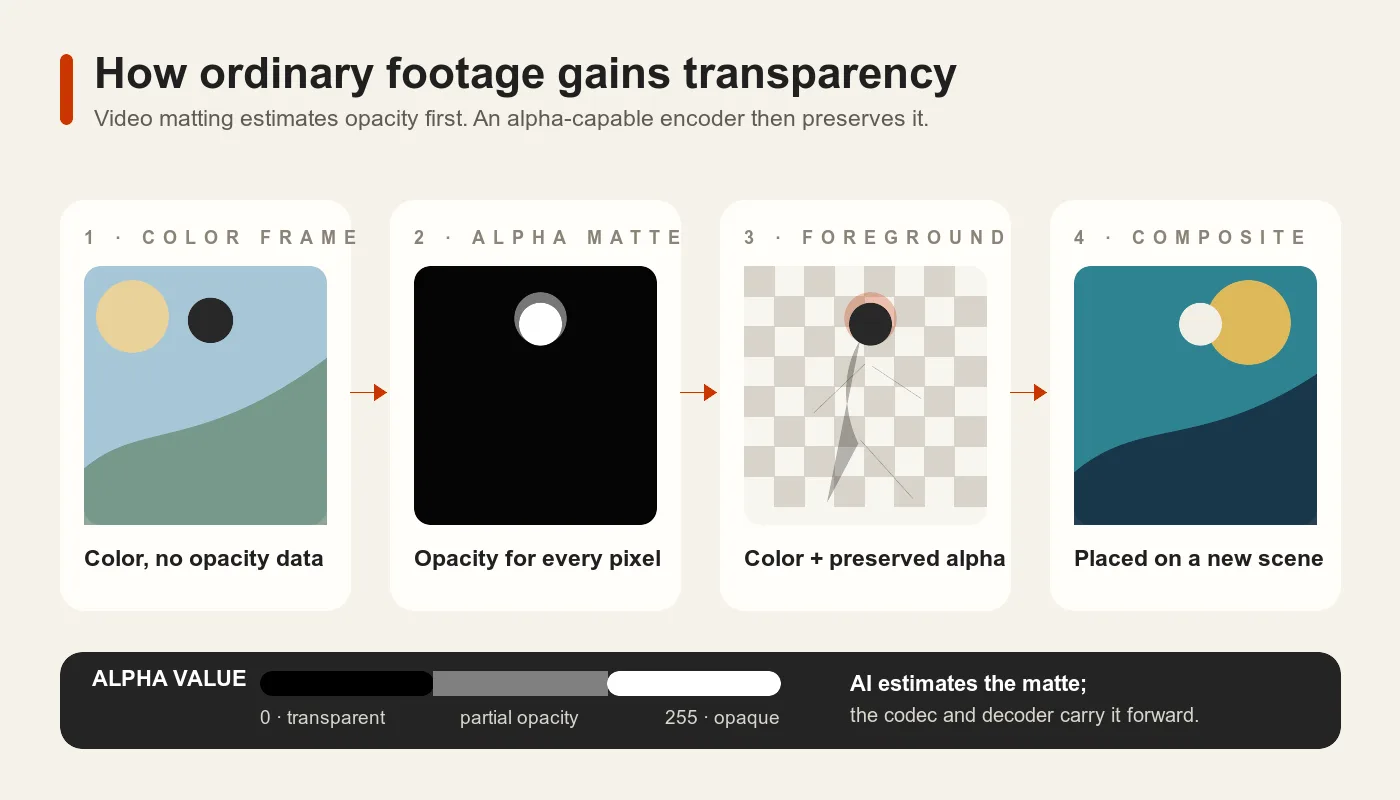
Figure 4. AI matting creates the opacity information; an alpha-capable encoder preserves it, and a compatible decoder uses it during compositing.
This is why an ordinary MP4 can be the input for a transparent-video workflow: new opacity information is inferred from the source frames and then saved with an alpha-capable encoding. Merely remuxing the original H.264 stream into another container, or renaming .mp4 to .mov or .webm, cannot create an alpha matte.
The difficult part is often temporal quality rather than a single frame. Hair, motion blur, translucent objects, shadows, fast movement, and objects crossing the frame can cause flicker or edge instability. A credible review should inspect the result in motion over multiple contrasting backgrounds, not only on a checkerboard preview.
Choose a removal method for your footage
For an ordinary background, the AI video background remover can estimate a new matte. This site's AI video tool uses credits and accepts individual videos shorter than 60 seconds. Upload suitable footage, choose a transparent background and an available transparent output such as WebM, then check the downloaded result in its destination. The tool does not export transparent MP4; the HEVC-with-alpha exception above describes a separate format capability.
For footage against a solid color, use the local green screen remover. Select the background color, adjust the edge controls while previewing, and export transparent VP9 WebM when your browser offers it. This tool is free and runs locally, with no fixed product duration limit; device resources still affect what it can process. PNG Sequence ZIP is the alternative output and contains no audio. WebM audio requires the necessary Opus encoding support.
Download files to compare transparency
These are three versions of one original, computer-generated animation. They were made offline for format testing, not by running footage through this site's AI tool. The source already contains alpha; it is useful for trying a fresh export, not for evaluating background-removal quality.
| Download | What is in the file | Use it for |
|---|---|---|
| Source animation: MOV | PNG-encoded frames with alpha in MOV | Re-exporting from a source that still has transparency; requires a compatible editor or decoder |
| Transparent example: VP9 WebM | The animation with alpha preserved | Testing transparency in a browser or compositor that supports WebM alpha |
| Opaque comparison: H.264 MP4 | The same animation composited over black | Seeing why a background baked into a video does not change with the layer beneath it |
You can download, modify, and redistribute these original example files for personal or commercial use. They contain no audio.
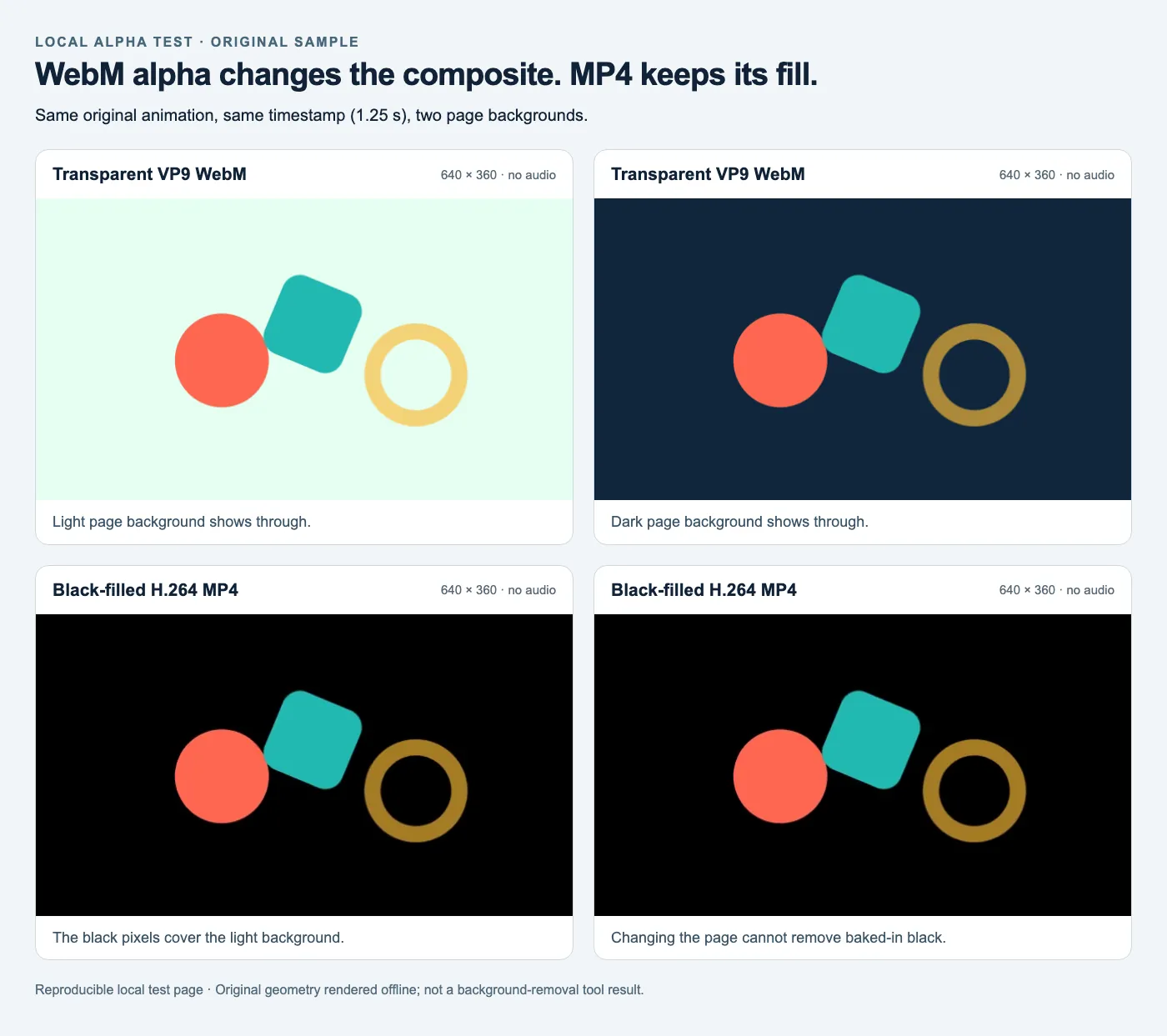
Figure 5. The WebM's transparent area takes the color of the layer beneath it. The MP4 retains its encoded black background. These are captures of the downloadable files, not a checkerboard painted into the video.
How to verify that a video is really transparent
Use a destination-based test rather than trusting the suffix or thumbnail:
- Composite it over at least two backgrounds. Use a bright solid color and a detailed image or video. The lower layer should be visible around the subject, including through partially transparent edges.
- Check the difficult frames. Scrub through hair, hands, motion blur, semi-transparent material, and scene changes. A clean first frame does not prove a stable matte.
- Inspect the encoded stream. Confirm the actual codec/profile and alpha-related properties with an editor or media-inspection tool. Treat metadata as supporting evidence, not a replacement for playback testing.
- Test the final destination. Open the file in the browser, editor, game engine, presentation app, or native player that will ship it.
- Repeat after any upload or conversion. If a service transcodes the asset, download or preview that processed version and test alpha again.
A visible checkerboard is not sufficient evidence. It may be the editor’s transparency grid, but it can also be pixels baked into the video. Replacing the layer underneath the video is the decisive visual test.
Why a transparent video may look black
Start by placing the known transparent sample above a colored layer in an alpha-aware app, then test your own file in the same place. A black result can come from the player's canvas, a decoder that ignores alpha, a flattened export, a later conversion, or a file that never had alpha. A dark fringe around an otherwise transparent subject can instead indicate a straight/premultiplied-alpha interpretation mismatch.
If the sample works but your file does not, compare your source, export, and converted copies. If neither works, check the playback environment before assuming both files are opaque. The WebM black-background troubleshooting guide walks through these branches with downloadable controls and a reproducible browser example.
Frequently asked questions
Can MP4 have an alpha channel?
Yes, in a qualified sense. Apple’s HEVC Video with Alpha profile allows alpha-encoded video tracks in MPEG-4 files. Most conventional H.264 MP4 files do not carry usable alpha, and compatible encoding does not guarantee compatible playback.
Can I convert a normal MP4 to a transparent MP4?
Yes, if the workflow first creates an alpha matte—for example through video matting or background removal—and then writes an alpha-capable MP4 profile. A container-only conversion cannot infer which pixels should be transparent.
Does H.264 MP4 support transparency?
Treat a normal H.264 MP4 export as opaque. Common H.264 delivery workflows do not provide a usable alpha channel. If transparency is required, select a specifically documented alpha-capable codec/profile instead of assuming the .mp4 extension is enough.
Does H.265 or HEVC support transparency?
A specialized HEVC-with-alpha profile does. That does not mean every H.265/HEVC encoder or decoder supports alpha. Verify the exact profile and playback environment.
Is WebM or MOV better for transparent video?
WebM is often suited to tested browser delivery; MOV with ProRes 4444 is often suited to editing and high-quality interchange. Neither extension guarantees transparency without an alpha-capable codec and correct export settings.
Will renaming a video file make it transparent?
No. Renaming .mp4 to .mov or .webm changes the filename, not the encoded stream. Transparency requires actual per-pixel alpha data.
Does a checkerboard prove that the video is transparent?
No. It may be a transparency preview or an opaque checkerboard rendered into the pixels. Composite the video over a different layer to tell the difference.
Why does my transparent video show a black background?
The viewer may use a black canvas, the decoder may ignore alpha, or alpha may have been removed during export or transcoding. Test the file over a colored layer in an alpha-aware application, then test the final destination.
Sources and methodology
This article separates standards and official implementation documentation from general compatibility advice. Sources were reviewed on August 28, 2026; browser and application support can change, so the final destination should always be tested.
- ISO/IEC 14496-14:2020 — MP4 file format: identifies MP4 as a file format derived from the ISO Base Media File Format.
- Apple — HEVC Video with Alpha Interoperability Profile: defines Apple’s alpha-capable HEVC profile and explicitly permits its tracks in MPEG-4 files.
- Apple — Apple ProRes white paper: documents optional alpha support in ProRes 4444 and ProRes 4444 XQ.
- Adobe — Alpha channels, masks, and mattes: explains alpha and matte concepts used in compositing.
- Adobe — Basics of rendering and exporting: documents RGB+Alpha output and the fact that codec alpha support varies.
- WebM Project — Alpha channel and Chrome for Developers — Alpha transparency in WebM video: document alpha-oriented WebM workflows.
- MDN — Web video codec guide: provides current browser-oriented codec and alpha compatibility notes.
The practical conclusion is precise: MP4 transparency is not a property of the .mp4 suffix. Most H.264 MP4 delivery files are opaque, while a specialized HEVC-with-alpha stream can be stored in an MPEG-4 container. Choose the codec and container for the destination, preserve alpha through every processing stage, and verify the final file in the software that will actually display it.