By Background Remover Video
Runway Background Remover: What Changed and What to Use Now
Runway retired its standalone background remover. Find the current tools, choose a replacement for transparent video, and test a downloadable WebM sample.
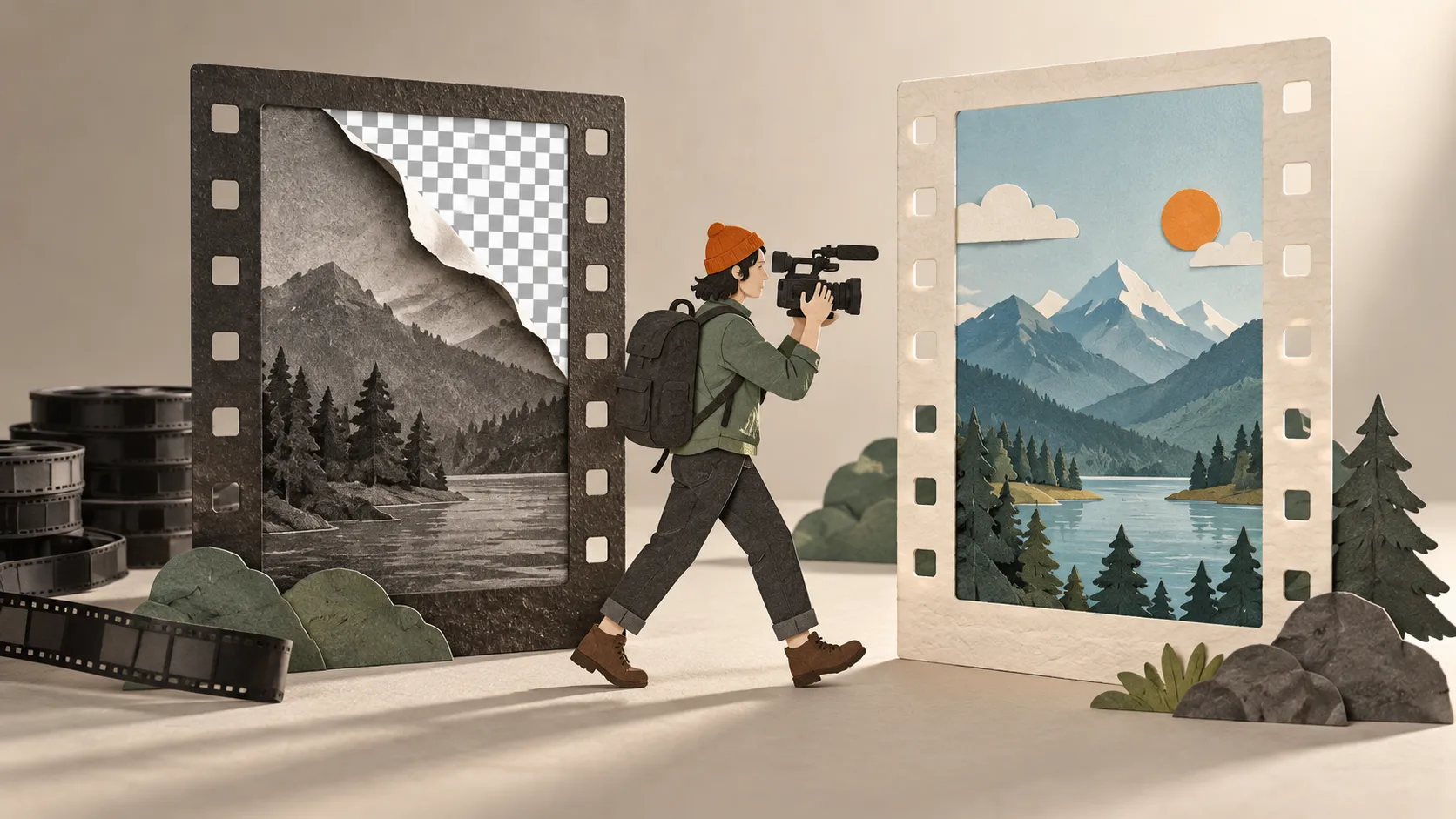
Runway retired its standalone Remove Background tool on April 10, 2026. Its official deprecation list points users to Video Backdrop. If an old tutorial tells you to open All Tools and select Remove Background, those steps no longer describe the current product.
Your next step depends on the file you need. To change a scene, look at Runway's current editing tools. To deliver a subject with a transparent background for another project, choose a workflow that exports alpha and test the downloaded file in that project.
We make BackgroundRemover.Video. We checked the linked Runway documentation on September 16, 2026. We have not completed an export from its current paid tools. The downloadable example below is an existing BackgroundRemover.Video result, not a Runway comparison.
Where did Runway's background remover go?
The same deprecation notice says the All Tools page was removed on April 10. Use its Video Backdrop link to find the replacement, rather than following an old bookmark to a Magic Tool.
Runway also has Edit Studio, a prompt-based editing workflow powered by Aleph 2.0. It can change backgrounds and other parts of existing footage. The help page lists a maximum video length of 30 seconds and maximum input resolution of 1080p. You can find it under Apps, in the Video category.
Those descriptions establish a way to edit a scene. They do not establish that the output includes a reusable alpha channel. A generated replacement background and a transparent cutout solve different delivery needs.
Choose a replacement around the deliverable
| What you need to hand over | A useful starting point | Check before committing |
|---|---|---|
| A finished shot with a different setting | Runway's current Video Backdrop or Edit Studio workflow | Whether it keeps the subject, motion and details you need |
| A short transparent subject for another timeline | An alpha-export tool, including our video remover | Clip length, actual output format and your editor's import support |
| A finished social video with captions and a new background | An editor such as CapCut or VEED | Feature access and whether the final export meets your brief |
| Footage already filmed against a uniform green screen | Chroma key in your editor or our green screen remover | Whether the key color also appears in the subject |
| A long shot needing detailed mask repair | A video editor with masking and compositing controls | Time available for manual corrections and the required delivery format |
Keep a copy of your original footage before trying a replacement. If the shot includes a logo, fingers crossing the body or loose hair, choose a test section containing that detail. A clean opening frame tells you little about what happens when the subject turns.
For a finished edit, the CapCut background removal guide covers the main methods and common problems. The VEED guide explains why an editor's transparent layer does not always become a transparent download.
A short transparent-video workflow
BackgroundRemover.Video accepts video clips strictly shorter than 60 seconds. A 60-second clip needs trimming before upload; buying 60 credits does not change that limit.
- Export the section you need from your source footage. Keep the original size and frame rate where your editing workflow allows it.
- Open the video background remover, upload the clip and review the credit estimate.
- Choose Transparent. Available transparent video choices include WebM VP9, MOV ProRes and MKV VP9. Pick a format your destination application supports.
- Check the audio and framing settings before processing. Download your result within the seven-day retention period.
- Import the downloaded file into the destination project. Put a light layer underneath it, then a dark one, and play through the movement.
If you need an ordinary H.264 MP4 for a finished social post, choose a solid background. Changing a filename from .mp4 to .webm does not add transparency. Our MP4 transparency guide explains the format choices.
This workspace does not provide a full editing timeline or frame-by-frame mask painting. If those controls are necessary for your shot, keep the work in an editor that has them.
Try a known transparent file first
Before spending credits, check whether your destination app can use this existing sample. It is a 2.5-second rotating-shoe animation, processed from a GIF using our production model settings. The resulting VP9 WebM is 324 × 576 pixels, contains 25 decoded frames and has no audio. Its actual alpha has been decoded and checked over light and dark backgrounds.
Download the source animation (GIF)
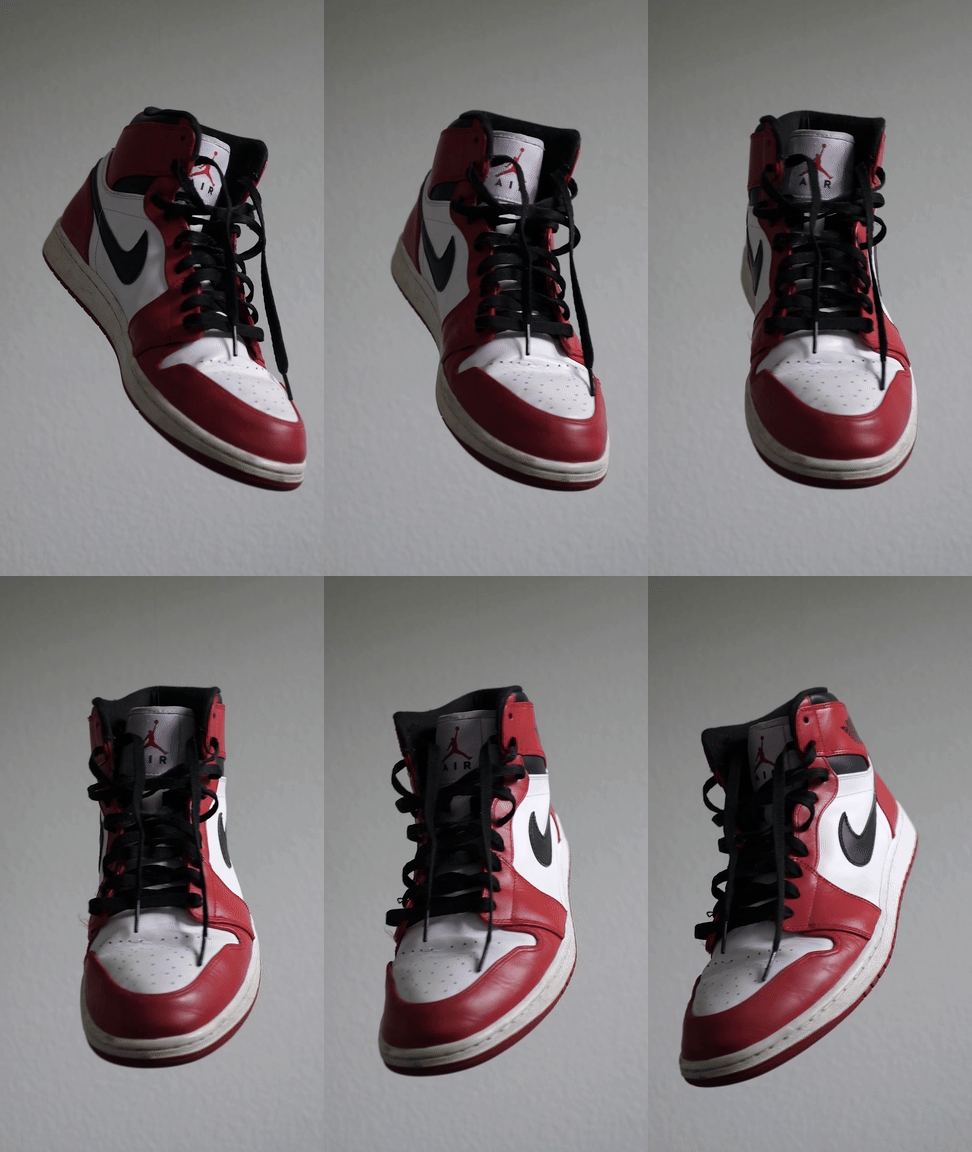
Download the transparent result (WebM)
The Unscreen replacement guide documents this same example. It is a compatibility check, not evidence that one service produces cleaner edges than another. The file came from a script using our production processing settings; it does not demonstrate a signed-in checkout or a Runway export.
If the sample looks black, test it over another layer before processing your own video again. The WebM black-background guide helps separate a player's background from missing transparency.
What would a replacement task cost?
Our current credit packs start at $5.99 for 60 credits. Video uses one credit for each started second, so a 10.2-second clip uses 11 credits.
| Clip | Credits used | Used portion of the $5.99 pack | First purchase with no available balance |
|---|---|---|---|
| The 2.5-second sample | 3 | About $0.30 | $5.99, leaving 57 credits |
| A 10.2-second clip | 11 | About $1.10 | $5.99, leaving 49 credits |
| A 30-second clip | 30 | About $3.00 | $5.99, leaving 30 credits |
These USD examples exclude trial allowances, discounts and taxes. The used portion is an allocation of a prepaid pack, not a separate amount you can pay for that one task. Purchased credits do not expire; processed files have a separate seven-day download period.
If you already have a Runway plan and want a new generated setting, first check the tools included in that plan. A replacement service makes sense when it supplies the file your next project needs. Test that file before moving the rest of your footage.