By Background Remover Video
remove.bg vs BackgroundRemover.Video: Which PNG Workflow Fits?
Compare image cutout costs, PNG export sizes and a downloadable sample, with the migration details remove.bg users need before choosing a tool.
If you only need a few paid image cutouts, remove.bg's small credit pack can cost less upfront. BackgroundRemover.Video makes more sense when you need reusable PNGs and have enough image or short-video work to use a larger pack. Compare the file you need with the amount you would pay today.
There is also a deadline to consider. remove.bg says its standalone website will close on December 1, 2026, at 9:00 a.m. CET. Its background removal is moving to Canva. Check the official migration FAQ before buying credits or building a new workflow around the old service.
We make BackgroundRemover.Video. For this comparison, we checked official documentation, uploaded the same plant image to remove.bg to inspect its download choices, and generated a fresh PNG using our production processing settings. We did not obtain remove.bg's paid full-size result, so this article does not rank the two tools' image quality. Facts were checked on September 14, 2026.
Compare the file you need first
| Your task | remove.bg | BackgroundRemover.Video |
|---|---|---|
| Try a small image for personal use | Free website preview up to 0.25 megapixels | AI image tasks use credits; check your available balance before starting |
| Download a full-size cutout | Full-resolution export uses credits; check the chosen plan | One image task uses 1 credit and produces a static PNG |
| Change the background or refine the cutout in the same workflow | Its current product includes background editing and erase/restore tools | Download the PNG and finish those edits in an image editor |
| Reuse a still subject in another design | Check the downloaded file and its dimensions | PNG keeps the cutout reusable on another background |
| Keep a GIF animated | This article compares still-image removal | The image tool returns a static PNG; use a video or GIF workflow for animation |
remove.bg separates free personal-use previews from paid high-resolution and commercial use. Its credit documentation explains the resolution difference. A free preview and a larger PNG are different deliverables, even when both look fine in a small browser preview.
Our image background remover accepts JPEG, PNG, WebP, GIF and AVIF files up to 10 MiB. It requires sign-in and credits. The workspace removes the background; it does not add a white backdrop, provide a brush editor or turn a logo into a vector file.
What would you actually pay?
These examples use USD prices checked on September 14, 2026. They assume no existing balance, free allowance, discount or tax. Both services offer different purchase sizes, so the table compares the specific plans shown, rather than claiming to find every customer's cheapest possible combination.
| Image requirement | remove.bg plan checked | BackgroundRemover.Video plan checked | What remains in our pack |
|---|---|---|---|
| 3 full-resolution cutouts, once | $3 for 3 pay-as-you-go credits | $5.99 for 60 credits | 57 credits after 3 image tasks |
| 40 cutouts during one current billing period | $9 for a 40-credit monthly plan | $5.99 for 60 credits | 20 credits after 40 image tasks |
Sources: remove.bg pricing and our credit packs.
For three images, you would pay $5.99 and use about $0.30 of the pack. You would still have to find a use for the remaining balance. If those three paid cutouts are the whole job, the checked remove.bg pack costs less upfront.
For 40 image tasks, the used portion of our 60-credit pack is about $3.99, but the payment is still $5.99. Purchased credits do not expire and can also cover video tasks. A larger monthly workload does not mean the image workspace has a bulk upload interface: the public workflow checked for this article processes one image at a time.
remove.bg's remaining service period changes the subscription calculation. Its FAQ says unused PAYG credits expire on December 1, 2026, and monthly subscriptions end automatically at shutdown; a final renewal on or after November 1 is free. Do not project the ordinary $9 monthly example indefinitely. Check the current terms against when you expect to use the credits.
New accounts may have a trial or signup allowance. Check what your account actually shows before buying a pack; a first-use allowance is not a permanently free AI plan.
A PNG sample you can inspect yourself
We used the project's own 1200 × 900 plant image and kept the new production-model PNG exactly as returned. Both files have the same dimensions. No manual brush work was used to improve the output.
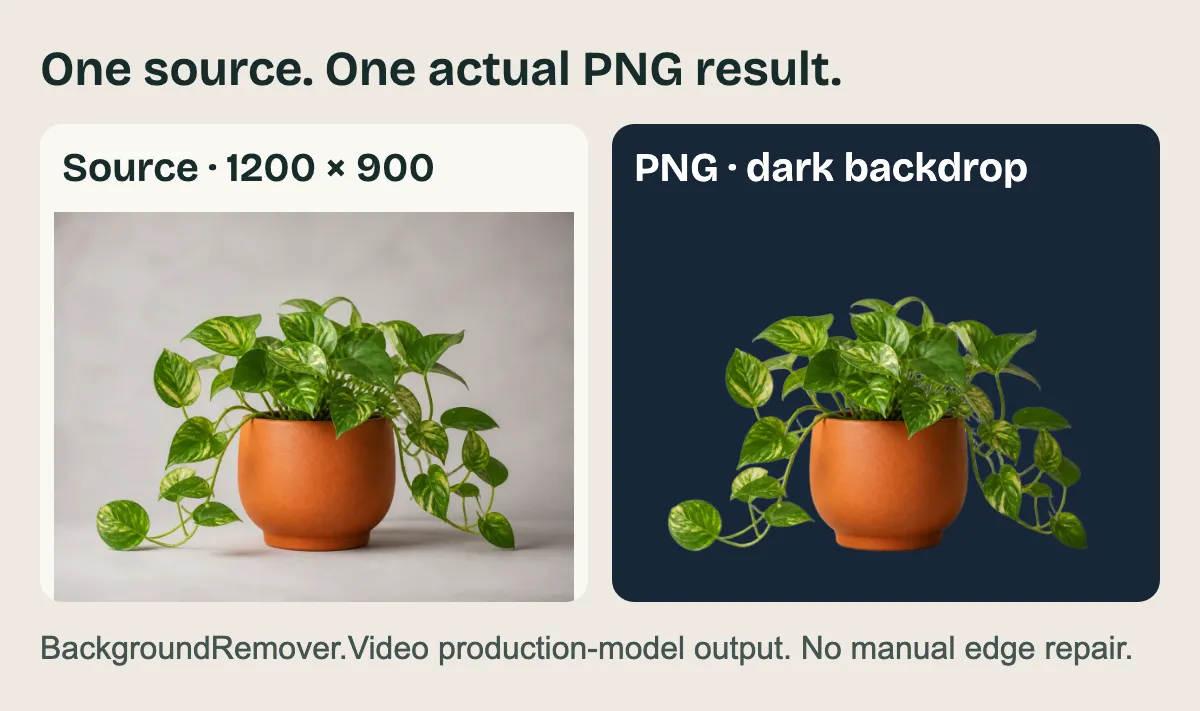
Source and BackgroundRemover.Video output, shown at the same scale. The dark panel is a display background behind the PNG.
Download the original plant image (WebP, 1200 × 900)

Download the unmodified cutout (PNG, 1200 × 900)

When we uploaded that source to remove.bg, its download menu showed a 577 × 433 free preview and a 1200 × 900 Max option to unlock. That is a useful size comparison, but it does not tell us which paid result has better edges. We have not published its preview as a substitute for a paid full-size comparison.
To judge a cutout for your own work, place the PNG over a light background and a dark one, then inspect it at 100%:
- Check the outside edge of the subject. Look for a pale fringe, missing parts or leftover background.
- Check openings inside the subject. On this plant, the gaps between leaves and thin stems matter as much as the outer silhouette.
- Check the intended output size. A preview enlarged for print or a product close-up can reveal softness that was invisible on a phone.
- Decide whether a shadow belongs in the final design. Keeping an original shadow and removing all surrounding pixels are different goals.
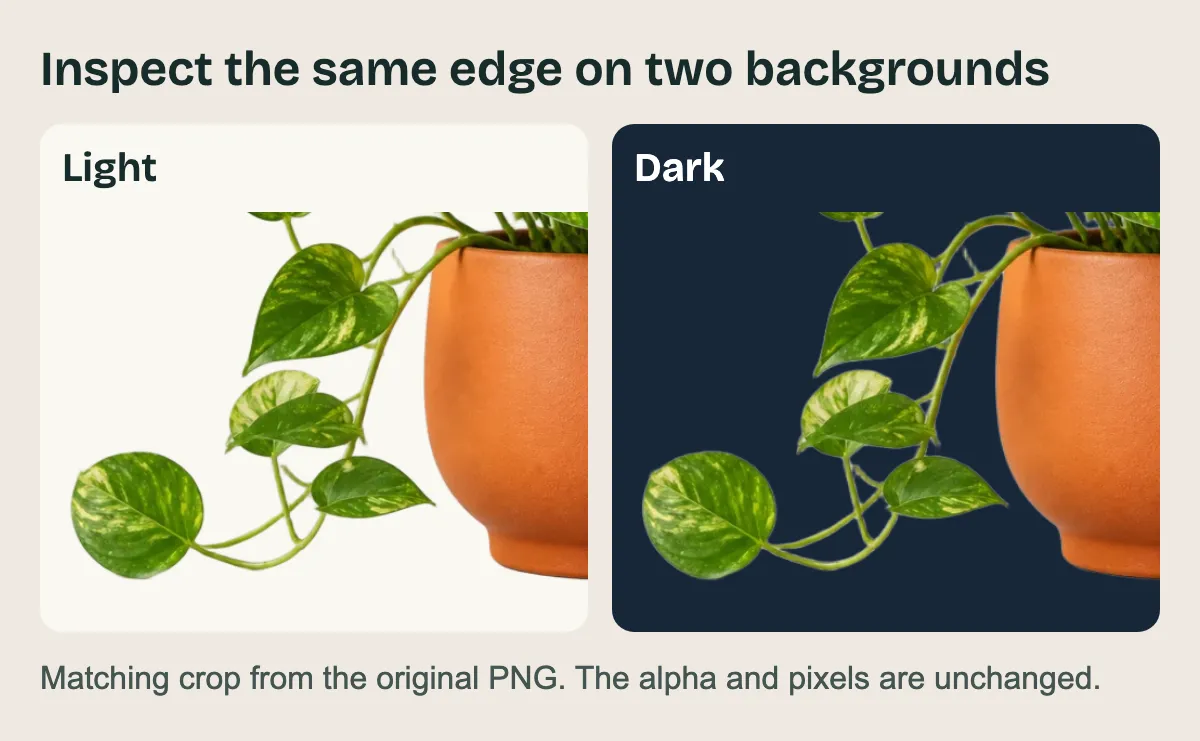
The same crop on two backgrounds. The file's pixels and alpha are unchanged.
Try a difficult source before choosing a tool. This plant cannot tell you how a portrait with loose hair, reflective packaging or a subject close to the background color will turn out. Include one of those images in your trial if it resembles the work you need to finish.
Choose around the work that comes next
Start with remove.bg when a small pack or its editing workflow fits your immediate job. If its existing tools already save you cleanup work, include that convenience in your decision. Review the migration deadline before making a longer commitment.
Try BackgroundRemover.Video when the PNG is the deliverable. It fits an image-to-cutout step before a separate design tool, particularly if you can use the remaining credits. It is a poor fit when you need an integrated brush editor, automatic background replacement or a complete layout application.
For a logo, signature or a small number of difficult edges, the control in GIMP may help more than another automatic attempt. Keep a local editor in mind for that precise graphic work. A PNG remains a raster image whichever tool creates it.
If you already automate remove.bg, treat migration as a separate integration task. Its official FAQ says enterprise API contracts continue, while the self-service API will stop accepting requests and points developers toward Leonardo.ai. Our API documentation describes our own upload, task and download flow; it is not a drop-in replacement for remove.bg's request format.
Questions that change the choice
Can I use the free remove.bg preview for a commercial product listing?
Its free-use help page specifies personal use for the free website preview. Check the commercial-use conditions and the dimensions you need before treating that preview as the listing's finished asset.
Will BackgroundRemover.Video replace the background with white?
The image workspace produces a transparent PNG. Place it over white in your editor if the marketplace or design calls for a white background. Keep the PNG as well if you expect to reuse the cutout elsewhere.
What if I actually need an animated cutout?
Use the appropriate animated workflow. Sending a GIF through the image tool produces one static PNG. For video delivery and reusable transparency, our Canva video comparison explains what to check in the downloaded file.